
From feedback to a finished cut: hear the tighter cut, then make the edits
Read your clip in NeuroVidz and an edit plan arrives in about a minute. Play the tighter cut to hear the trims before you make them, take the fixes into your editor as a cut list or a CSV, make the edits, then upload v2 and re-check it against v1. NeuroVidz never edits your video: you make the cut, in whatever editor you use.
What you need
- A cut to tighten: video (mp4, mov, webm) or audio (mp3, wav), up to 400 MB. One read covers up to three minutes; with a longer file you pick the part to read.
- An editor. If your Reels start as long videos, ReelFyre, also made by Sandmatter, finds the clips with AI, lets you edit them your way and publishes or schedules them to YouTube and Instagram. Any other editor works too.
- A NeuroVidz account. Your first reads are free, with no card or UPI needed.
The screenshots below come from one real clip: the 38-second product walkthrough on the sample page, read once as it is and once after its fixes.
1. Read the clip: the edit plan
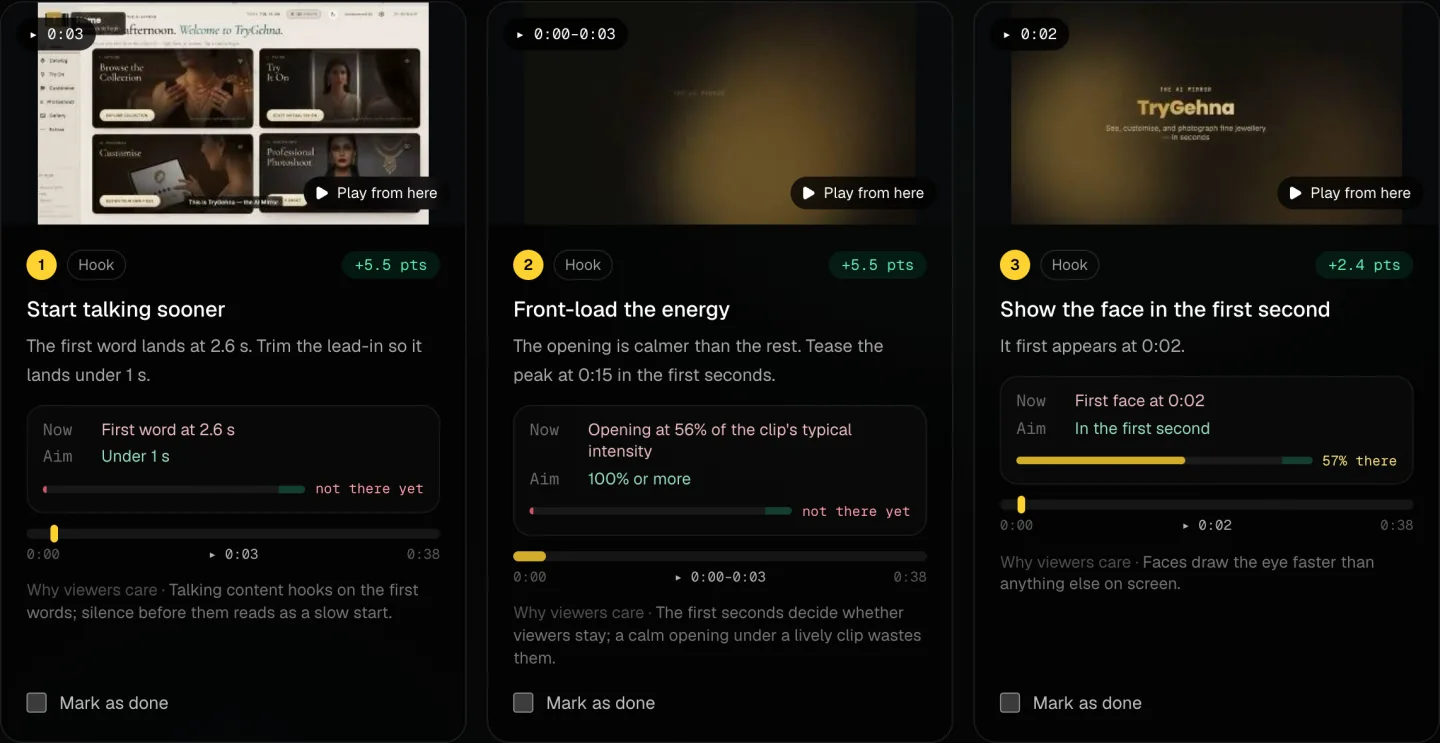
Upload the cut and the edit plan lands in about a minute: ordered fixes, each pinned to a timestamp with the frame it refers to. Each card says what to change, where it is now against the aim, and why it matters to a viewer. Play from here jumps the clip to that second.
2. Hear the tighter cut before you make it
Under the plan, Play the tighter cut plays your clip with the slow start and the dead air skipped, so you hear the trims before you touch the timeline. It keeps a short beat before the first word and half a second of each pause it shortens, so the result does not sound clipped.
On the sample, trimming 2.3 seconds moves the first word from 2.6 s to 0.3 s, and the clip goes from 0:38 to 0:36.

Still stretches where someone is talking are not trimmed in the preview, because they need a new shot, not a cut. The plan tells you where they are.
3. Take the fixes into your editor
Three ways, depending on how you work:
- Copy cut list puts the trims on your clipboard as text, such as “1. cut 0:00.0 to 0:02.3 · lead-in”. Paste it into your notes or send it to whoever is editing.
- CSV lists every edit with its start and end in seconds, a timecode counted from 00:00:00:00, the name and the note. It works beside any editor.
- Resolve markers (.edl, beta) is DaVinci Resolve's own marker format, for anyone who edits there: each fix becomes a marker on the timeline at its second.
The first rows of the sample's CSV, unedited:
start_seconds,end_seconds,timecode,name,note
0.00,3.00,00:00:00:00,"2. Front-load the energy","The opening is calmer than the rest. Tease the peak at 0:15 in the first seconds."
0.00,2.29,00:00:00:00,"Cut: lead-in","Remove 2.3 s"
2.60,2.60,00:00:02:18,"1. Start talking sooner","The first word lands at 2.6 s. Trim the lead-in so it lands under 1 s."
The CSV and the marker file come with video reads. An audio-only read gets the plan and the preview, and the cut list copies the same way.
4. Make the edits
Work through the plan in time order, in the editor you use:
- Trims first. Cut the lead-in so the first word lands within a second, and shorten dead air, keeping a breath so the speaker does not sound rushed. The tighter cut you heard is the target.
- Then the fixes a trim cannot make. “Front-load the energy” on the sample means teasing the strongest moment, at 0:15, in the first seconds: a reorder or a cold open, not a trim. A late face can need its shot moved up, though on the sample the lead-in trim alone brought the face into the first second.
- Tick each fix off in the plan as you go, so nothing is missed.
5. Re-check v2
Export the new cut and press Re-check my edited cut. NeuroVidz reads v2 and shows the score before and after, part by part, and which planned edits now pass. When the new cut is close in length to the old one, it also lays the two timelines one above the other, on the same time scale.
For the sample we made only the trim: the first 2.29 seconds, exactly as the cut list says. The re-check:
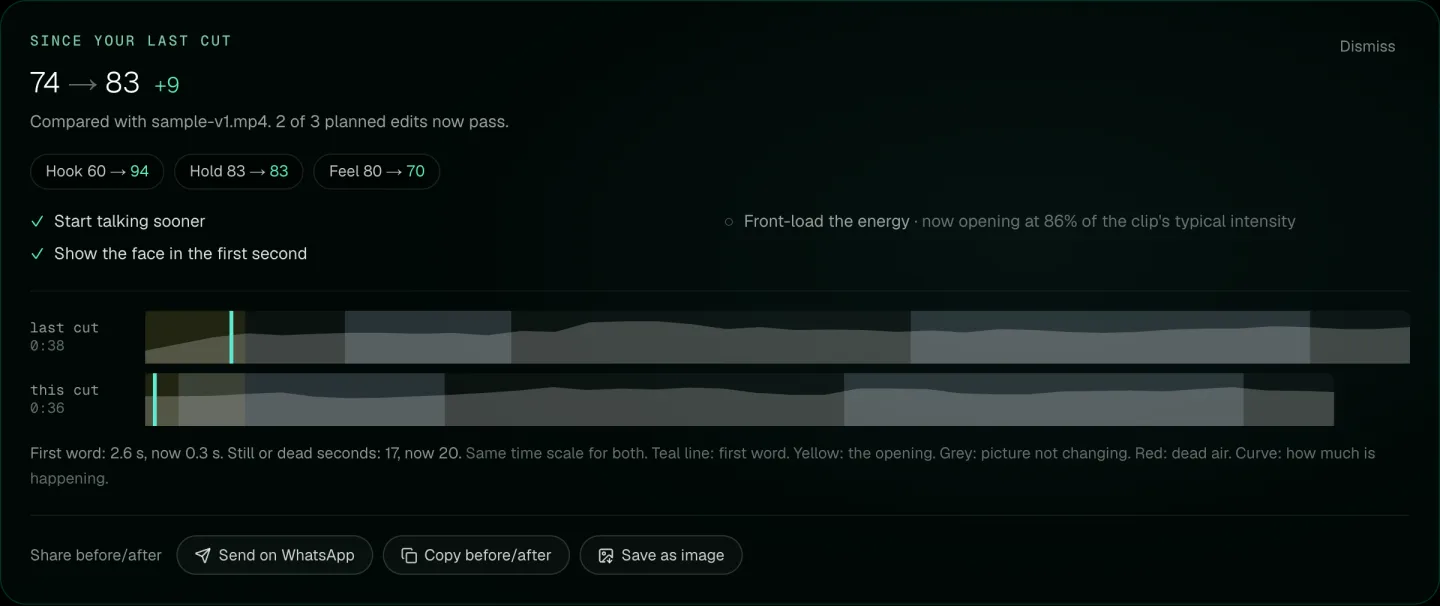
The trim alone took the read from 74 to 83, and Hook from 60 to 94. Front-load the energy is still open (the opening is now at 86% of the clip's typical intensity), because a trim cannot move the 0:15 peak to the start. Feel went down, from 80 to 70: the re-check shows the parts that drop as well as the ones that rise, so you can judge the trade before you post.
A re-check costs the same as a read. Share before/after sends the comparison on WhatsApp, copies it as text, or saves it as an image, which is useful when a client asks what changed in v2.
Where it fits
- Reel editors, freelance or in an agency: check a cut before the client sees it, then show what changed in v2.
- YouTubers: a Short in full, or any three minutes of a longer video.
- UGC creators: testimonials, unboxings and demos before the brand sees them.
- Podcasters: an audio-only clip gets the plan, the tighter-cut preview and the re-check.
- Directors, videographers and cinematographers: one read covers up to three minutes, and the closest fit is trailers, teasers, promos and social cut-downs. The short-form targets, such as a first word inside a second, are not rules for a narrative scene.
NeuroVidz does not edit, render or export your video, and it does not predict views or reach. The tighter cut is a preview, and the Resolve marker file is in beta.
Related
- How a video editing team can check every cut before the client sees it
- How film and production teams can check a scene's pacing and sound
- NeuroVidz and Frame.io: a measured check and human review
- Reel edit checklist: 16 checks before you export
Questions
Does NeuroVidz edit my video?
No. It reads the file, plays a preview of the tighter cut in your browser and gives you the fixes as a plan, a cut list and a CSV. You make the edits in your own editor.
Which editor do I need?
Any. The cut list and the CSV are plain text, so you can work through them beside whatever you edit in. If your Reels start as long videos, ReelFyre, also made by Sandmatter, finds the clips and lets you edit and publish them. If you edit in DaVinci Resolve, there is also a marker file in its format, which is in beta.
What is in the CSV?
One row per edit: where it starts and ends in seconds, a timecode counted from 00:00:00:00, the name of the fix and its note. Sort it, tick it off, or keep it open beside your timeline.
Why did one part go down after my edits?
The re-check measures every part again on the new cut, so a part can move down as well as up. It shows both, so you can decide which version to keep.
Does it work for audio-only clips?
Yes for the edit plan, the tighter-cut preview and the re-check. The marker files come with video reads.
What does it cost?
Your first reads are free when you sign up, with no card or UPI needed. After that, prepaid plans start at ₹149 and nothing renews by itself. One read is any video up to one minute, or any audio clip up to three minutes, and re-checking your edited cut costs the same as a read.
What happens to my clip?
Videos are processed to produce the analysis and stored in your account, and you can export or delete everything at any time. Faces are detected only to read expressions, never to identify anyone, and expression reading is optional.
Does it predict views?
No. It checks how the cut is built. Views, reach and retention depend on the topic, the timing and the audience, and they show up in the platform's own analytics after you post.
Your first reads are free. No card or UPI needed to start. Plans from ₹149, paid by UPI.
Read my cut freeUpdated 14 November 2026. NeuroVidz is made by Sandmatter LLP; how and why it was built.